How do I change a Payment Method on a plan?
This document explains the process of changing payment methods on an active plan.
Additional Information
| Before you start: You can either add a new payment method or select an existing one — both options are covered separately below. Payble does not support editing an existing payment method. When details change (for example, a replacement card or updated bank account details), a new payment method is created in Payble and assigned to the existing plan. The original remains stored against your profile unless removed. For more on how payment methods are stored, see Storing payment methods within Payble. |
How-to
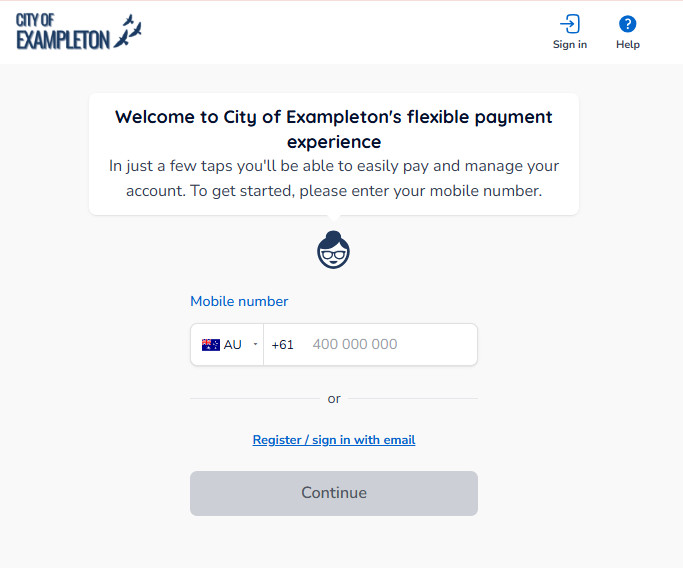
To make changes or view your plan in Payble, sign in using the exact same authentication method you used when setting up your plan — this is the mobile or email (if supported by your council) that you used to create the plan. You will not be able to view your plan if you authenticate with a different method.
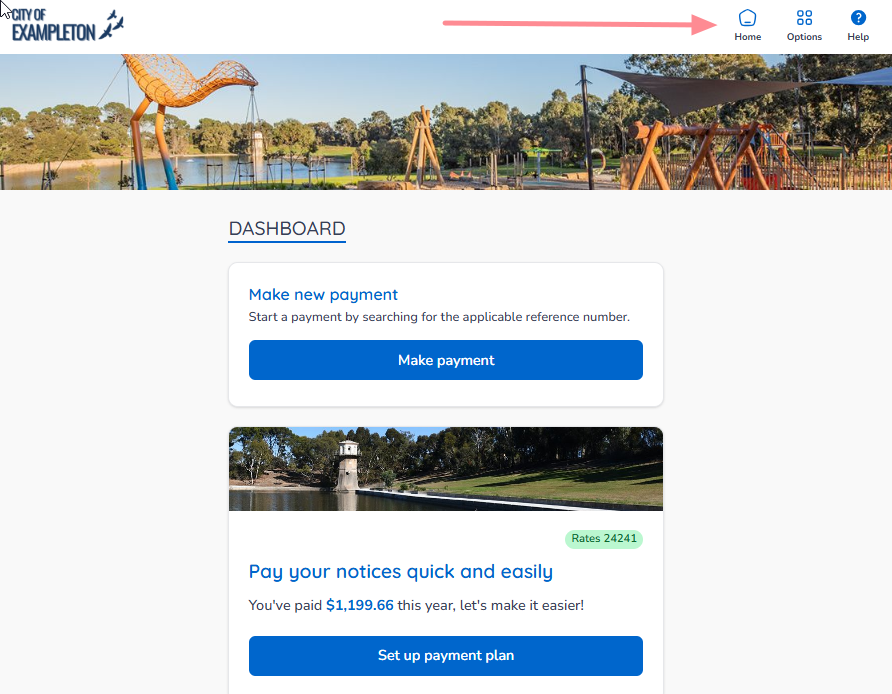
After signing in, if your plans and payments don’t appear right away, click your council's logo at the top of the page to return to your profile, or use the Home button. On a desktop/laptop browser, the Home button is located on the top banner.
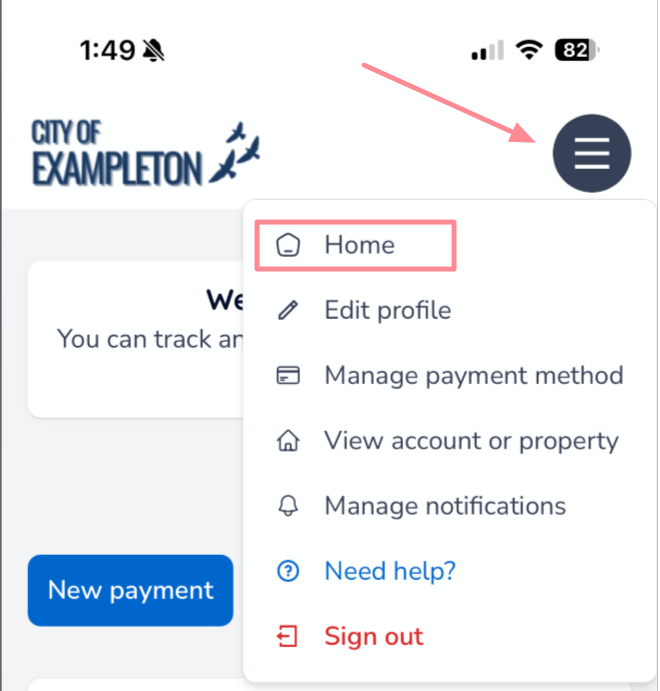
On a mobile or tablet browser, the Home button is located under the menu button.
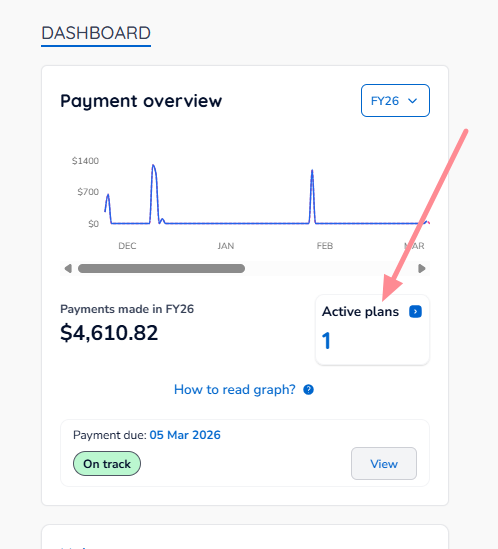
Once you are on your Home page, click the Active Plans box.
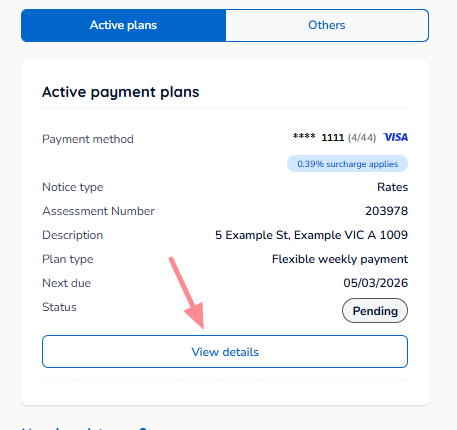
Scroll to the plan you want to modify, then click View details.
Click Manage, then Change payment method.
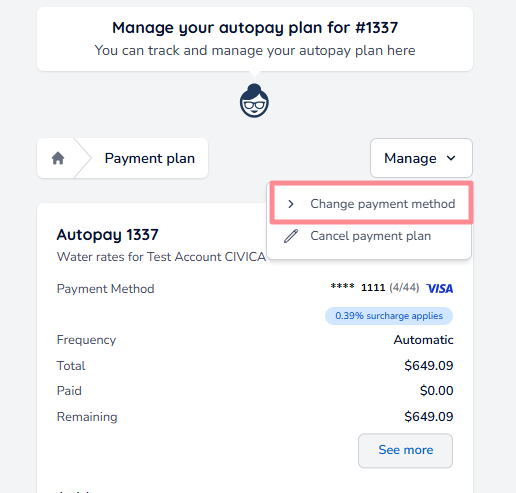
From here you can either add a new payment method or select one you've already saved — see Option 1 below to add a new payment method, or skip to Option 2 to select an existing one.
Option 1: Add a new payment method
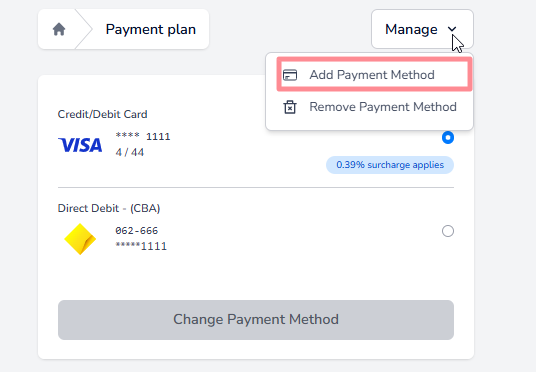
Click Manage, then Add Payment Method.
Choose between adding a new Credit/Debit Card or Bank account.
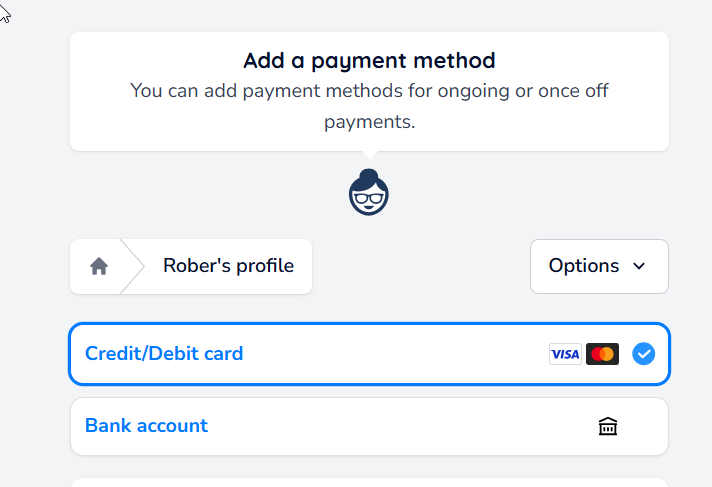
When adding a new payment method, use the toggle shown below to add it automatically to all active plans, or to specific plans only.

After the form has been completed, click Acknowledge and continue.
| Tip: If the toggle in the previous step was enabled, the next step can be skipped — the payment method is automatically assigned to the plan. |
Select the new payment method, then click Change Payment Method to finalise. All future payments will be made using this payment method.
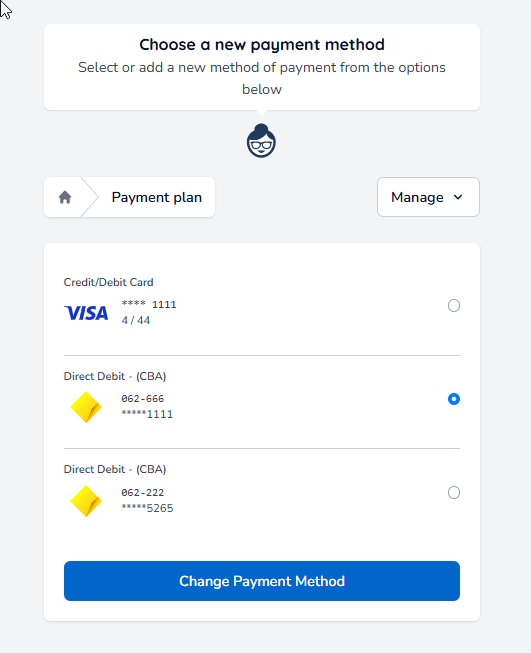
Option 2: Select an existing payment method
After clicking Change payment method, you'll see any existing payment methods available for use, including any surcharges if applicable.

Make your selection, then click Change Payment Method to finalise. All future payments for this plan will be made using this payment method.
Was this article helpful?
That’s Great!
Thank you for your feedback
Sorry! We couldn't be helpful
Thank you for your feedback
Feedback sent
We appreciate your effort and will try to fix the article