How to add your payment plans to your device calendar
Additional Information
| Before you start: You'll need to be signed in to your council's payment portal with at least one active payment plan. A single calendar link covers every payment plan you have, so you only need to set it up once. Calendar apps check for changes on their own schedule, and some can take several hours to show an updated payment. If you'd rather not use the calendar link, you can download a one-off copy instead (see Phase 3). Please note: This guide was written using an iPhone. Screens and button names may look slightly different on your device or calendar app. |
- Phase 1 — Find your calendar settings
- Phase 2 — Subscribe to your calendar link
- Phase 3 — Other calendar options
See every upcoming payment in the calendar you already use, so you always know when a payment is due and how much it will be. Once you've subscribed, your calendar updates by itself whenever your payment plans change.
| Phase 1 — Find your calendar settings |
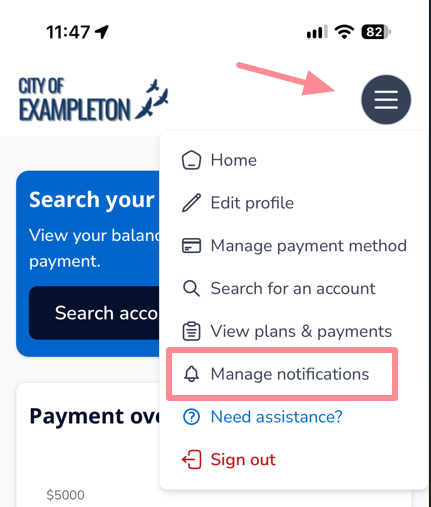
Sign in to your council's payment portal and tap the menu button in the top-right corner. Select Manage notifications.
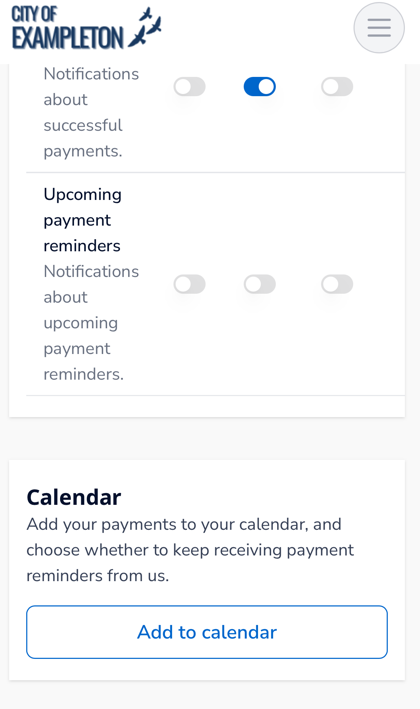
Scroll down to the Calendar section at the bottom of the page and tap Add to calendar.
| Phase 2 — Subscribe to your calendar link |
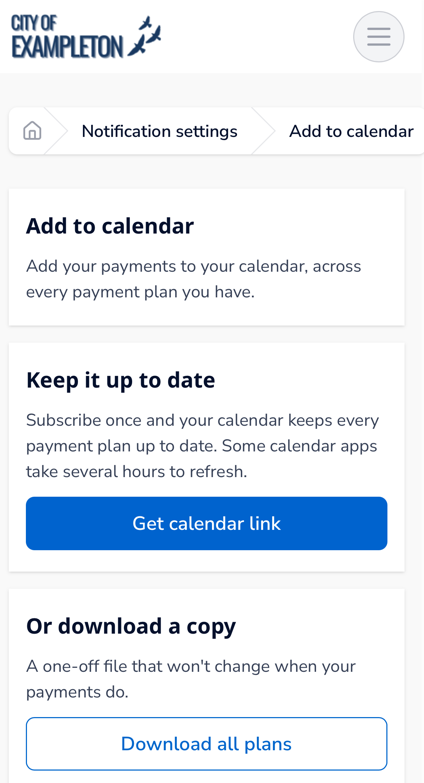
Under Keep it up to date, tap Get calendar link. This creates a personal link that covers every payment plan you have.
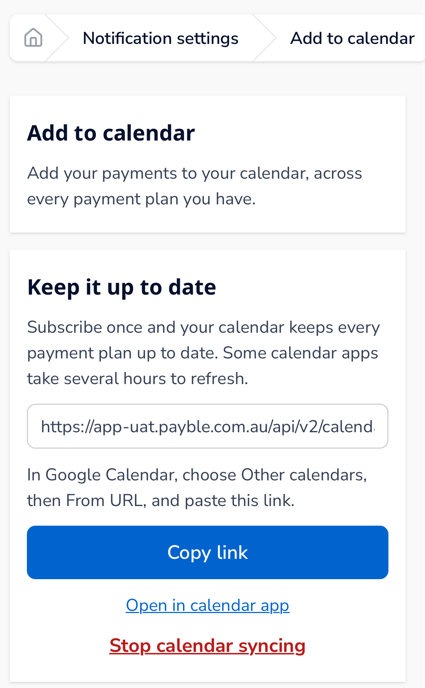
Your calendar link now appears on screen. Tap Open in calendar app to send it straight to your device's calendar app.
| Tip: Keep your calendar link private. Anyone who has it can see your upcoming payments. |
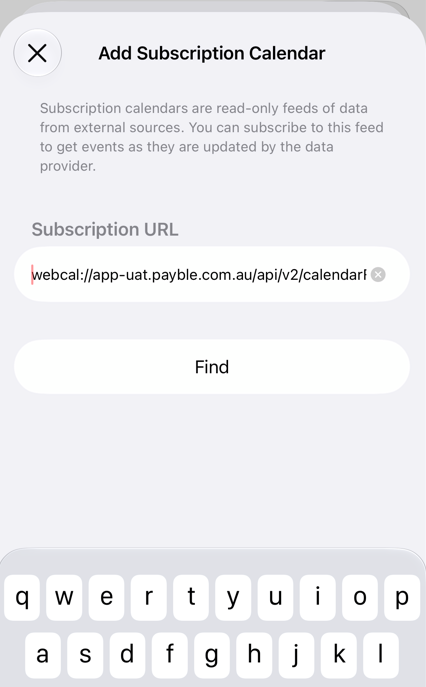
Your calendar app opens the Add Subscription Calendar screen with your link already filled in under Subscription URL. Tap Find.
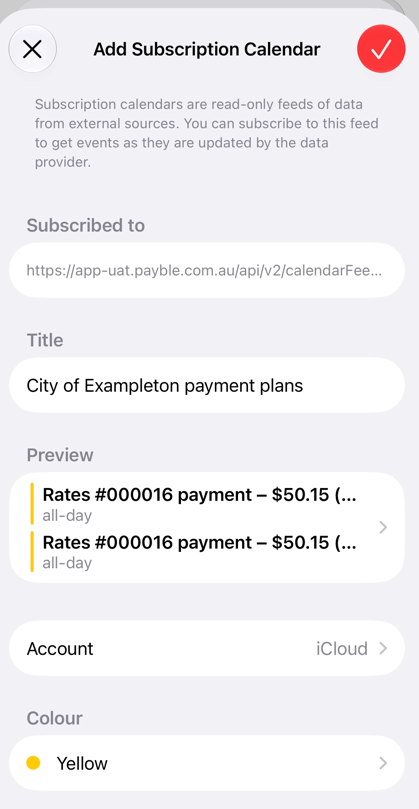
Your calendar app shows a preview of your upcoming payments. Each payment appears as an all-day event with its amount. Check the settings below, then tap the tick in the top-right corner to finish.
- Title — the name the calendar shows in your list. You can keep the name it's given or change it.
- Account — choose the account to save the calendar to. A synced account shows your payments on your other devices too.
- Colour — choose a colour so your payments stand out.
- Notifications — choose whether your calendar should alert you about these events.
| Tip: If you'd rather get reminders from your calendar, go back to Manage notifications and turn off Upcoming payment reminders to avoid getting the same reminder twice. You'll still get notifications about successful payments. |
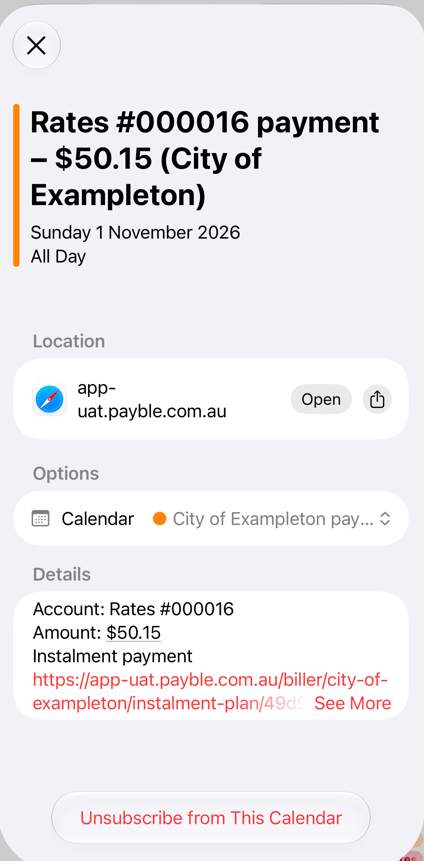
Your payments now appear in your calendar on the day they're due. Tap a payment to see its details:
- Account — the council account the payment is for.
- Amount — how much will be paid on that day.
- Link to your plan — tap it to open your payment plan in the portal.
You can also tap Unsubscribe from This Calendar at the bottom of any payment to remove the whole calendar from your device.
| Phase 3 — Other calendar options |
Most calendar apps that can subscribe to a calendar from a web address will work with your link. Follow Phase 1 and Step 3, then tap Copy link and paste it into your calendar app's option for subscribing or adding a calendar by URL.
In Google Calendar, choose Other calendars, then From URL, and paste your link.
If you'd prefer not to subscribe, go to Or download a copy on the Add to calendar page and tap Download all plans. Open the downloaded file to add your payments to almost any calendar app.
| Tip: A downloaded copy is a one-off snapshot. It won't update if your payments change, so download a new copy any time your plan changes. |
To stop sharing your payments with your calendar, open the Add to calendar page and tap Stop calendar syncing. Your calendar link stops working and your calendar stops receiving updates.
To remove the calendar from your device, open any payment in your calendar and tap Unsubscribe from This Calendar (see Step 7).
Was this article helpful?
That’s Great!
Thank you for your feedback
Sorry! We couldn't be helpful
Thank you for your feedback
Feedback sent
We appreciate your effort and will try to fix the article