How do I change my payment amount?
Some flexible plan types support editing the future payment amount or changing the frequency of payments.
Additional Information
| Before you start: Not every plan has the option to edit the payment amount or frequency, and at times you may still be required to pay over this amount to ensure all due amounts are paid by their due dates and avoid penalties and interest. Your council may increase your amount during periods of the year, or at the start of a new year, to ensure scheduled amounts are enough to cover any outstanding amounts by the time they're due — you'll be notified of any changes to your payment amount via SMS or email. Your council controls whether your plan type supports changing amounts or frequency. |
- Getting Started
- Option 1: Updating payment plan (the frequency, or enable 'get ahead' payments)
- Option 2: Updating payment amount
Getting Started
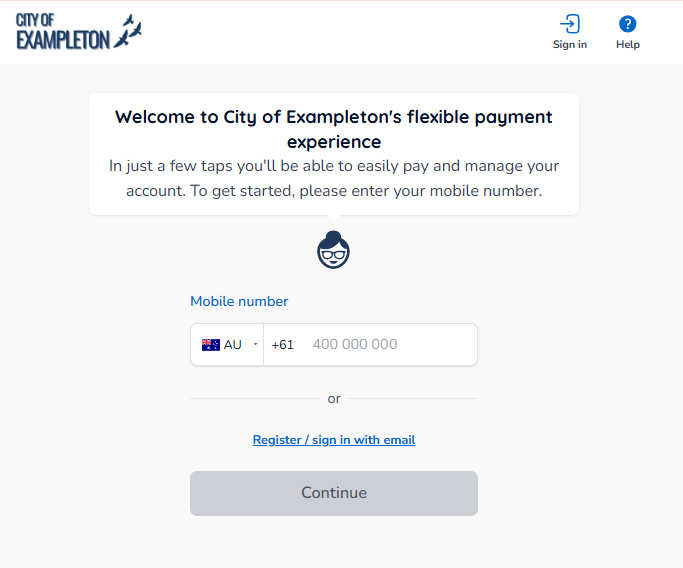
To make changes or view your plan in Payble, sign in using the same authentication method you used when setting up your plan (mobile or email). You will not be able to view your plan if you haven’t authenticated with the exact same method.
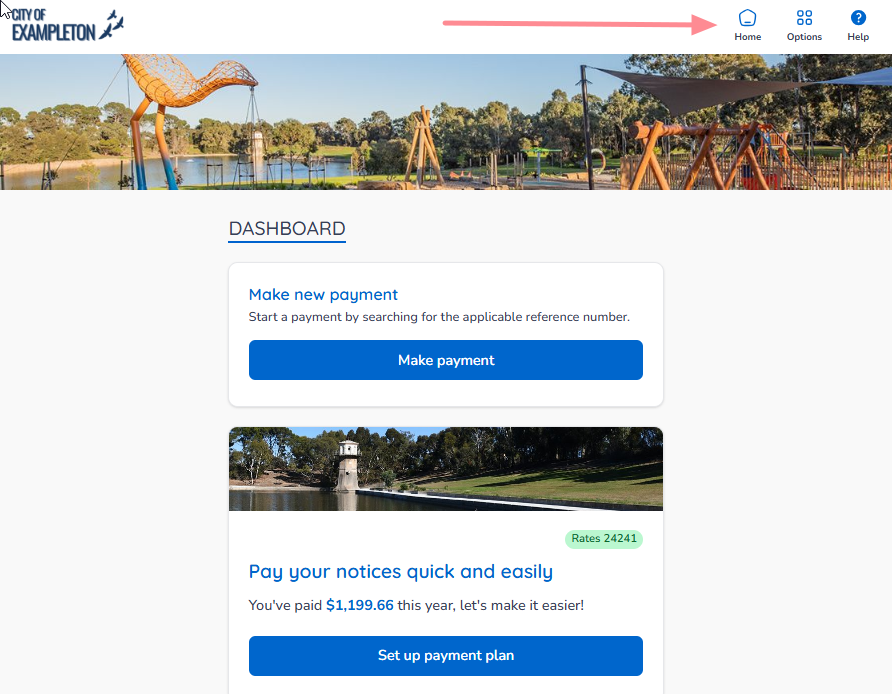
If your plans and payments don’t appear right away, click your council’s logo at the top of the page to return to your profile, or use the Home button. On the desktop browser, the Home button is located on the top banner.
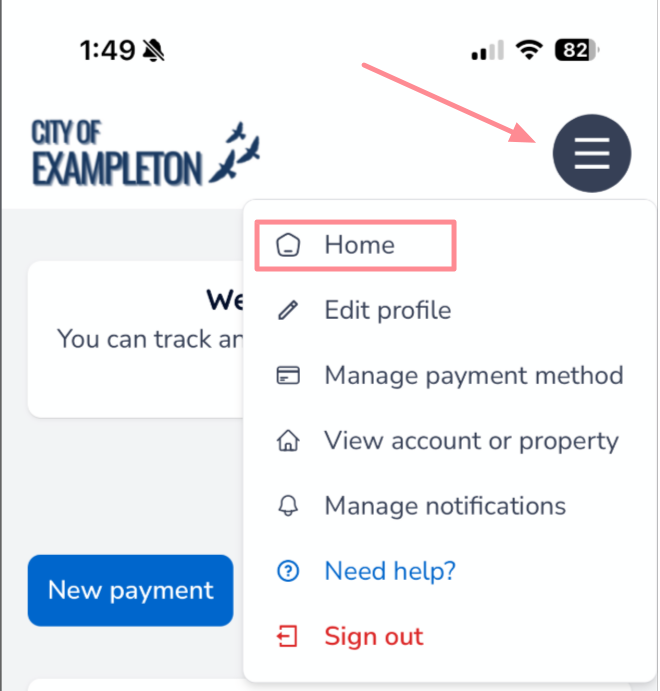
On a mobile or tablet browser, the Home button is located under the menu button.
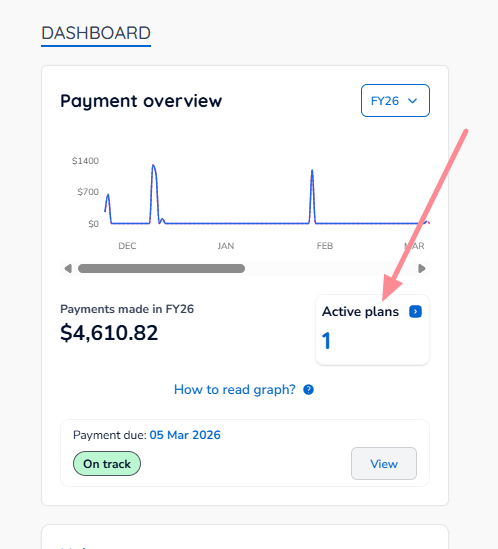
Once you are on your Home page, click the Active Plans box.
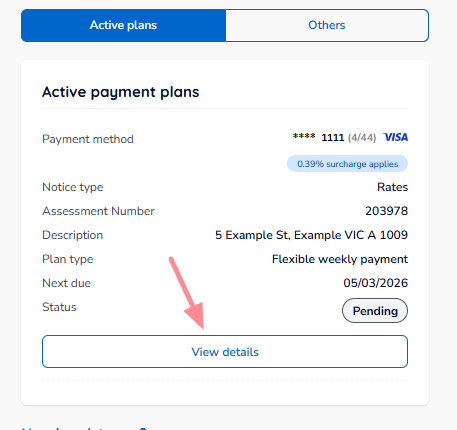
Scroll to the plan you want to modify, then click View details.
Option 1: Updating payment plan (the frequency, or enable 'get ahead' payments)
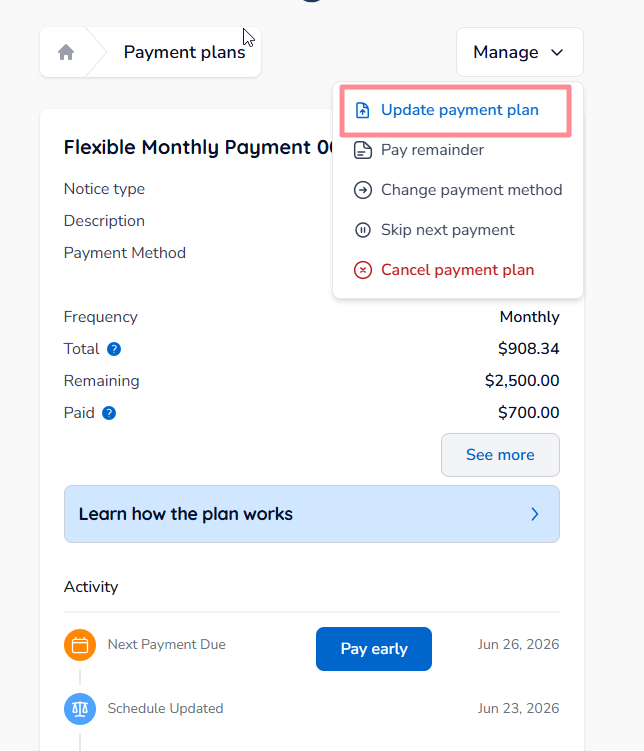
From Manage, tap Update payment plan. This will redirect you to the plan creation interface, where you can update your payment plan.
Option 2: Updating payment amount
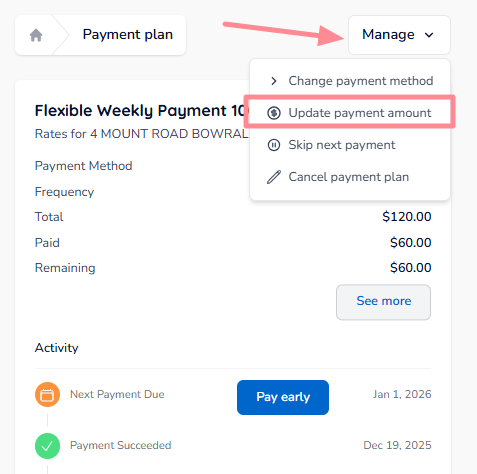
From Manage, tap Update payment amount.
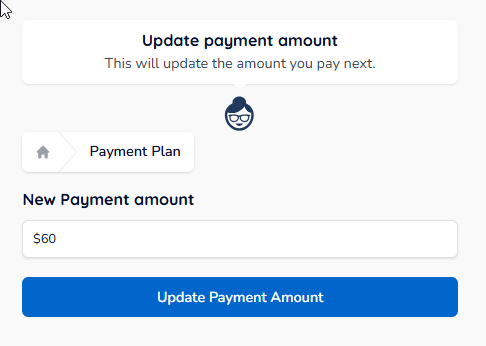
Enter the new amount you would like to pay on each instalment moving forward, and then click Update Payment Amount to confirm your changes.
Was this article helpful?
That’s Great!
Thank you for your feedback
Sorry! We couldn't be helpful
Thank you for your feedback
Feedback sent
We appreciate your effort and will try to fix the article