How do I enable (or disable) email payment receipts?
This document outlines how to enable (or disable) payment receipts being sent to your email.
Additional Information
| Before you start: This process requires an email to be added to your profile — see How do I change my contact information? to add one. |
How-to
To make changes or view your plans in Payble, sign in using the same authentication method you used when setting up your plan (mobile or email). You will not be able to view your plan if you haven’t authenticated with the exact same method.
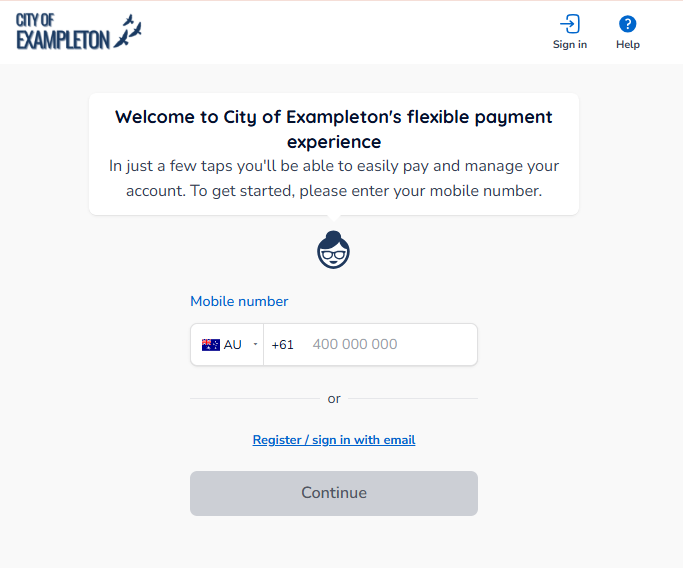
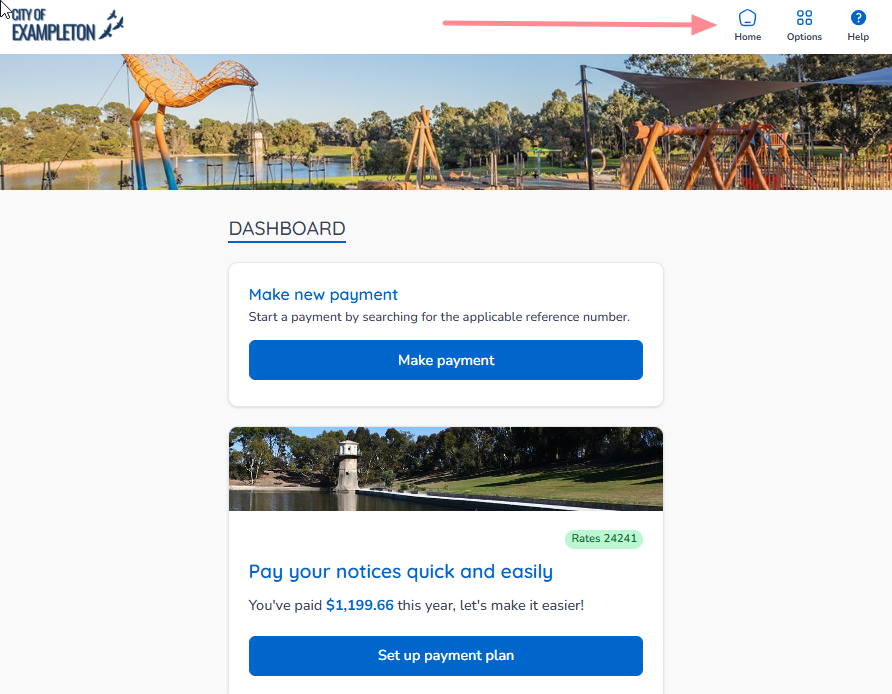
If your plans and payments don’t appear right away, click your council’s logo at the top of the page to return to your profile, or use the Home button. On a desktop browser, the Home button is located on the top banner.
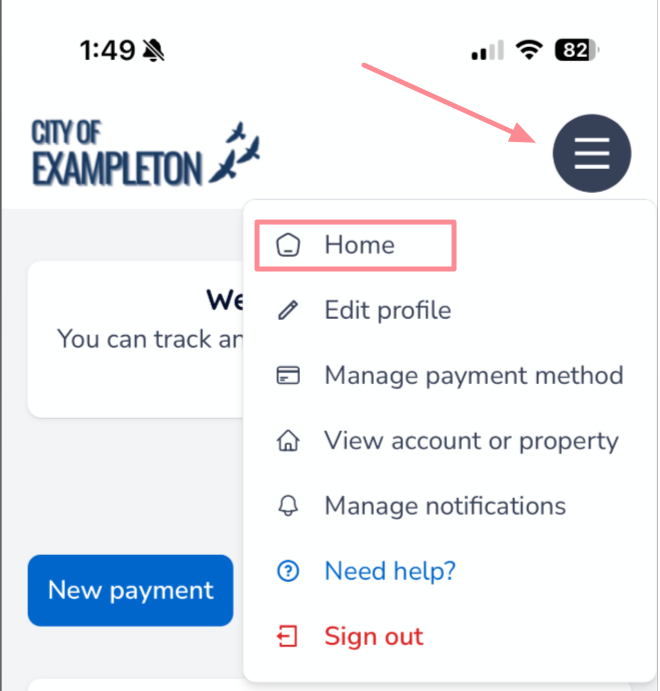
On a mobile or tablet browser, the Home button is located under the menu button.
Click the Options button in the top right corner, and then click Edit profile. If using mobile, this is shown in the previous screenshot.
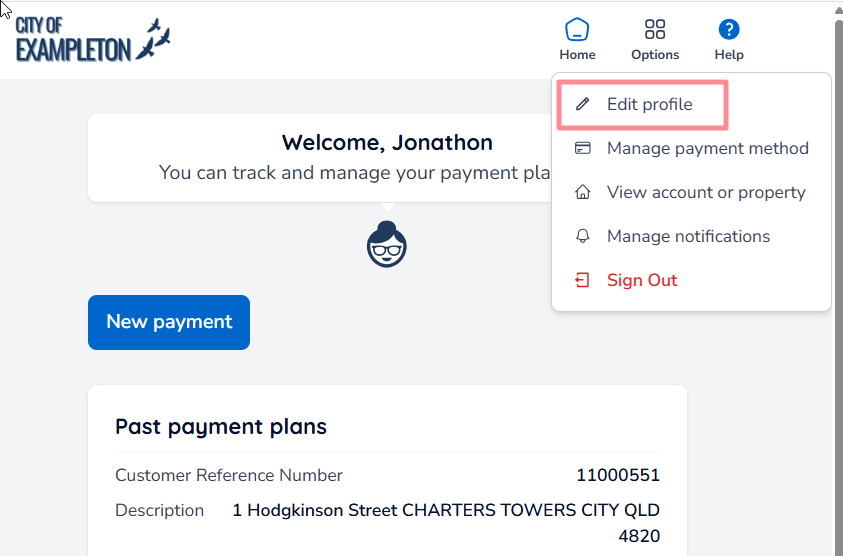
This will take you to the Profile Information screen.
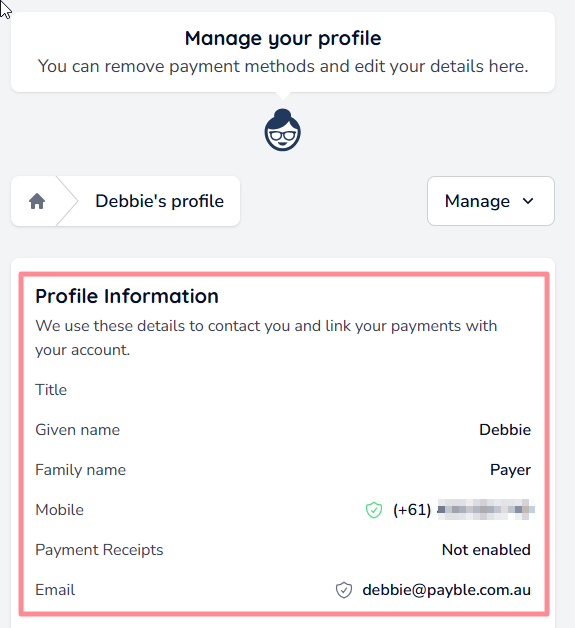
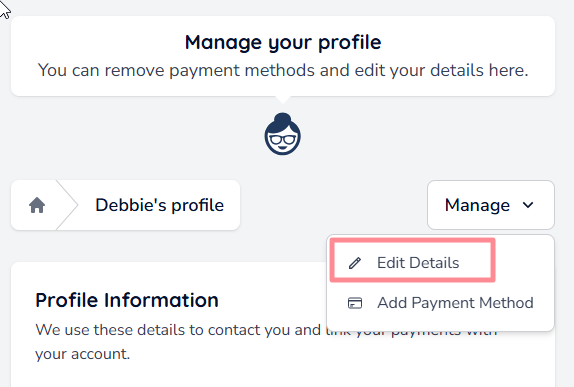
From the Manage drop-down menu on the profile screen, select Edit Details.
Toggle here to enable, or un-toggle to disable.
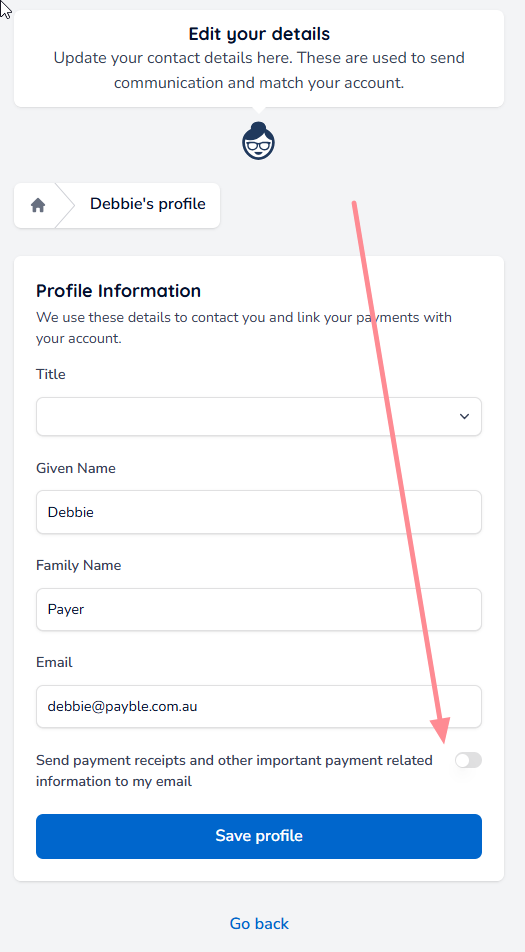
| Tip: This is also a good opportunity to update any other details on your profile as required. |
Was this article helpful?
That’s Great!
Thank you for your feedback
Sorry! We couldn't be helpful
Thank you for your feedback
Feedback sent
We appreciate your effort and will try to fix the article