How a Managing Agent Signs In to Payble
Additional Information
| Before you start: This login is only available for councils using Payble as a digital notice solution. If a council hasn't enabled this feature, managing agents won't have an account created for them and this sign-in flow won't apply. |
Managing agents can sign in to Payble to view, track, and manage notices for every property their council has assigned to their portfolio, all from one dashboard.
There are two ways to get to the managing agent sign-in page.
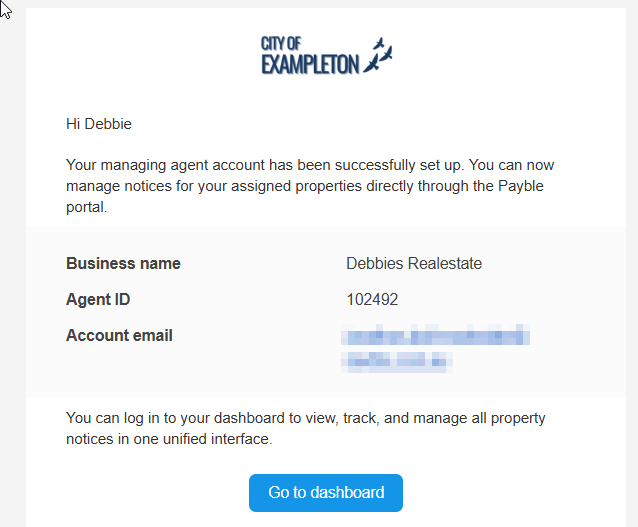
Once a council sets up a managing agent account, the agent receives an email confirming their business name and Agent ID. Select Go to dashboard in that email to open the sign-in page.
Go to the council's Payble homepage and select the Sign in to your dashboard option listed for registered managing agents. This takes you to the same sign-in page as the email link above.

Whichever option you used in Phase 1, signing in from here works the same way.
On the sign-in page enter the email address the account was set up with and select Continue.
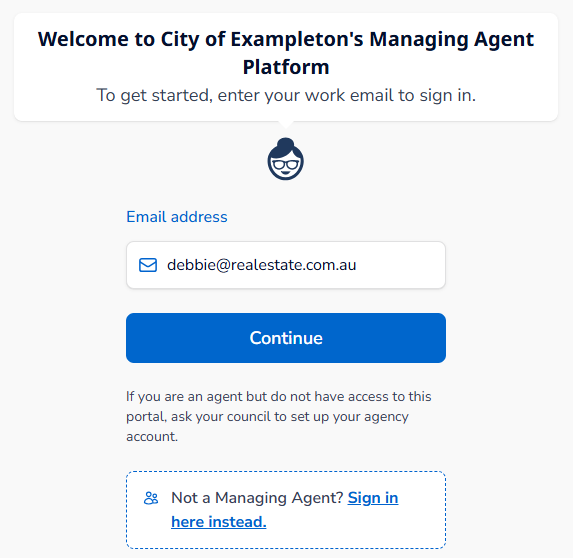
| How this differs from a regular sign in: This page is only for managing agents. Ratepayers and other customers use a separate link and sign in a different way. The managing agent login also has no password to set or remember—access is verified by email and a one-time code each time, rather than a fixed username and password. |
A "Verify your login" email arrives with a 6-digit code, valid for 5 minutes. Enter the code on screen to continue. If it expires, use Resend code to get a new one.
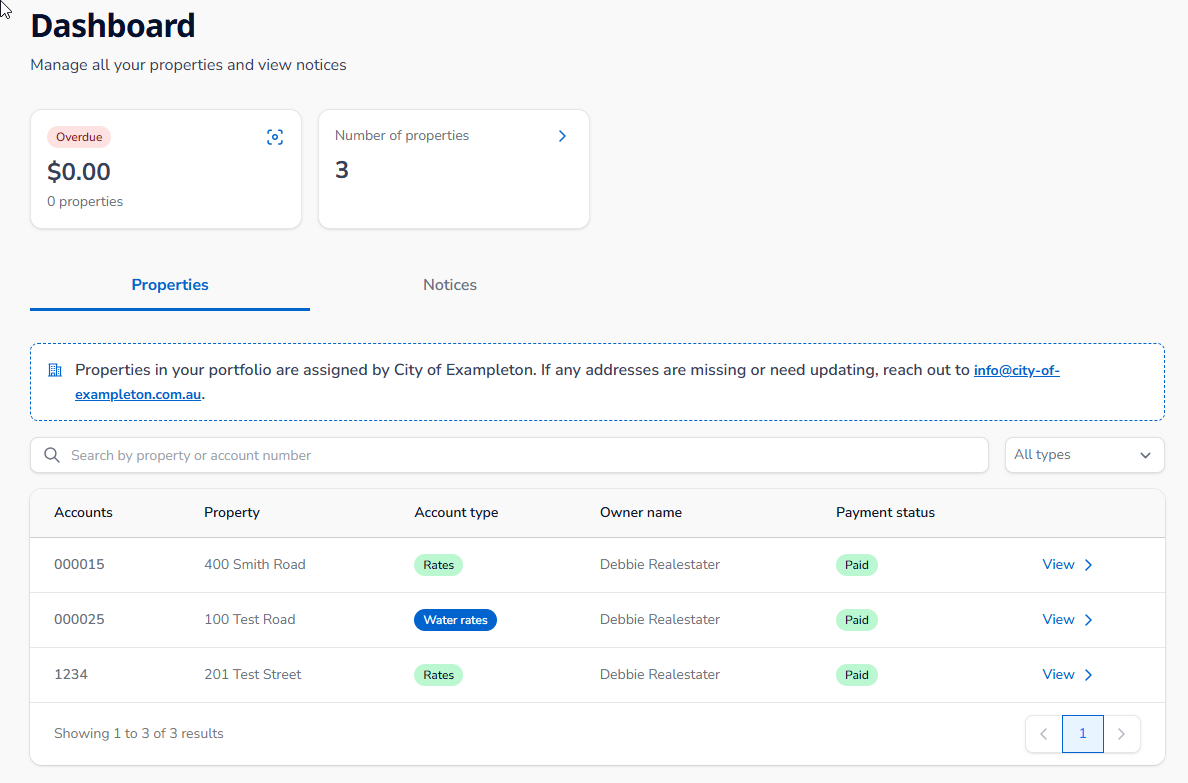
Once verified, you're taken straight to your dashboard, showing the properties, notices, and payment status for everything the council has assigned to your portfolio.
Was this article helpful?
That’s Great!
Thank you for your feedback
Sorry! We couldn't be helpful
Thank you for your feedback
Feedback sent
We appreciate your effort and will try to fix the article